How to Turn a Long Video Into Short Clips
A practical workflow for cutting a podcast, webinar, or talk into vertical short clips for TikTok, Reels, and Shorts, by hand or with an AI tool.
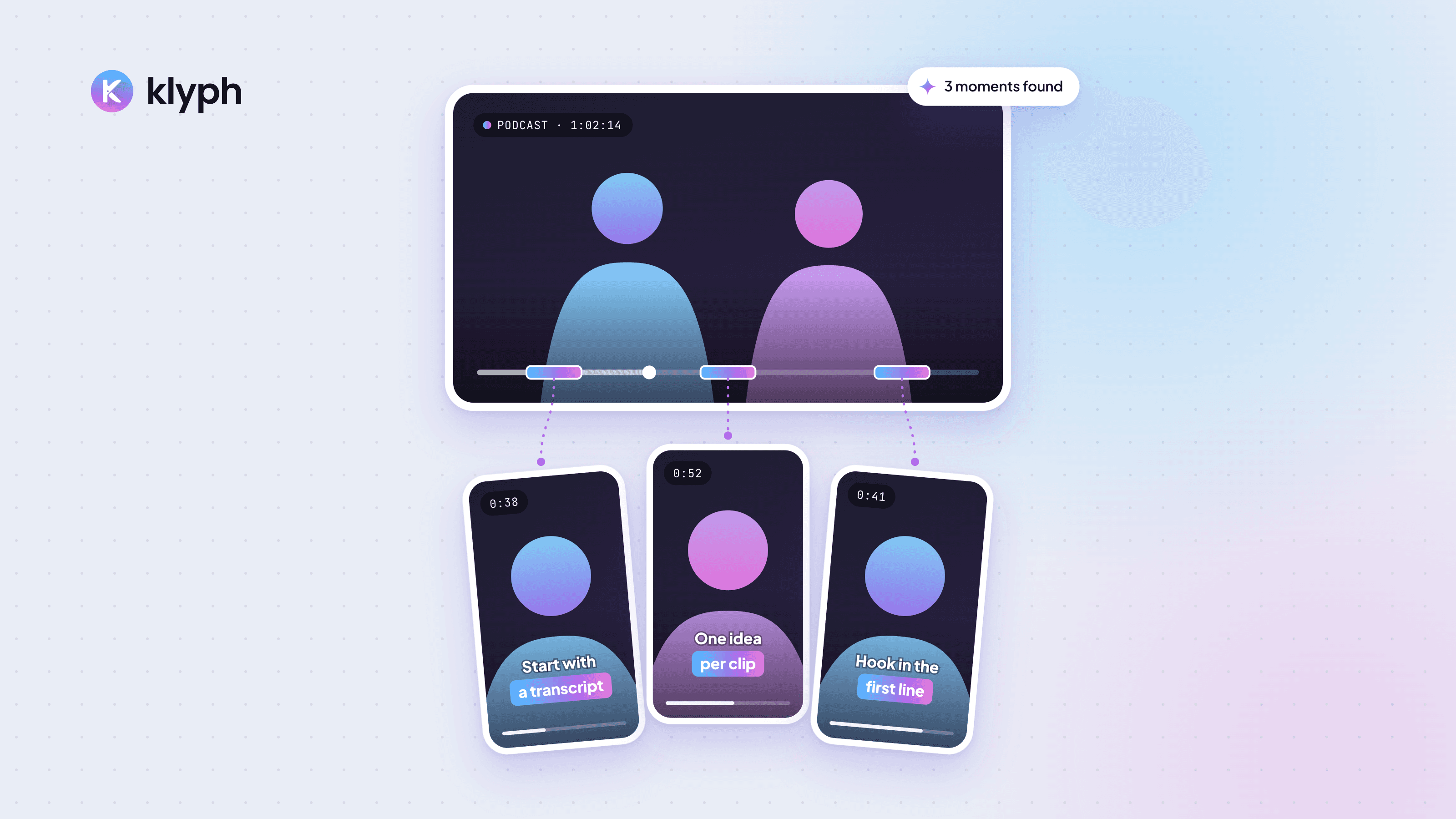
Learning how to turn a long video into short clips mostly comes down to finding the right moments. The editing is the easy part. A one-hour podcast or webinar usually holds a handful of self-contained segments that work on their own. Your job is to find them, cut them tight, and format them for vertical feeds.
This guide covers the full workflow, from picking moments to publishing, and shows where an AI tool can take over parts of it.
How do you turn a long video into short clips?
To turn a long video into short clips, get a transcript first, then mark the moments that make sense to someone who never saw the full video. Cut each one down to a single idea, starting on a strong first line and ending on a clean final sentence. Next, reframe the footage to a 9:16 vertical crop so the speaker fills the screen on a phone. Add burned-in captions, since a lot of people scroll with the sound off. Export each clip as its own MP4 at the source resolution. Then upload them to TikTok, Instagram Reels, and YouTube Shorts with a caption written for each platform. You can do every step in a normal editor such as DaVinci Resolve, Premiere Pro, or CapCut. The slow parts are finding moments and timing captions. AI clipping tools automate those two jobs plus the reframing, which leaves you to review and approve.
What makes a moment worth clipping?
A good clip makes sense on its own, so a stranger can follow it without the earlier 40 minutes. Before you cut anything, check each candidate moment against this list:
- It opens strong. The first sentence states a claim, asks a question, or starts a story. "So, building on what I said earlier" doesn't work as a first line.
- It covers one idea. If the speaker switches topics halfway through, you have two clips or none.
- It ends cleanly. A punchline, a conclusion, or a finished thought. Never stop mid-sentence.
- It needs no visuals you can't see. "As you can see on this slide" falls apart once the slide is cropped out of a vertical frame.
Disagreement, a specific number, a short story, and a concrete how-to step tend to survive being cut out of context. Long setups and inside references usually don't.
Step by step: how to cut clips by hand
Here's the manual workflow. It works in any editor that supports custom sequence sizes.
- Get a transcript. YouTube, Descript, Premiere Pro, and most recording tools can generate one. Skim it and highlight candidate moments with timestamps.
- Shortlist the strongest five to ten. Use the checklist above. Be strict. Five good clips beat fifteen soft ones.
- Create a vertical sequence. Set it to 1080×1920 at the same frame rate as your source.
- Drop in each segment and trim the edges. Cut the "um" and the breath before the first word. Start on the sentence that grabs attention, even if the speaker said something else first.
- Reframe. Scale and position the footage so the speaker's face sits in the upper third. For two-person podcasts, either cut between speakers or stack them top and bottom.
- Remove dead air inside the clip. Short jump cuts on pauses keep the pace up. Don't cut so hard that the speaker sounds robotic.
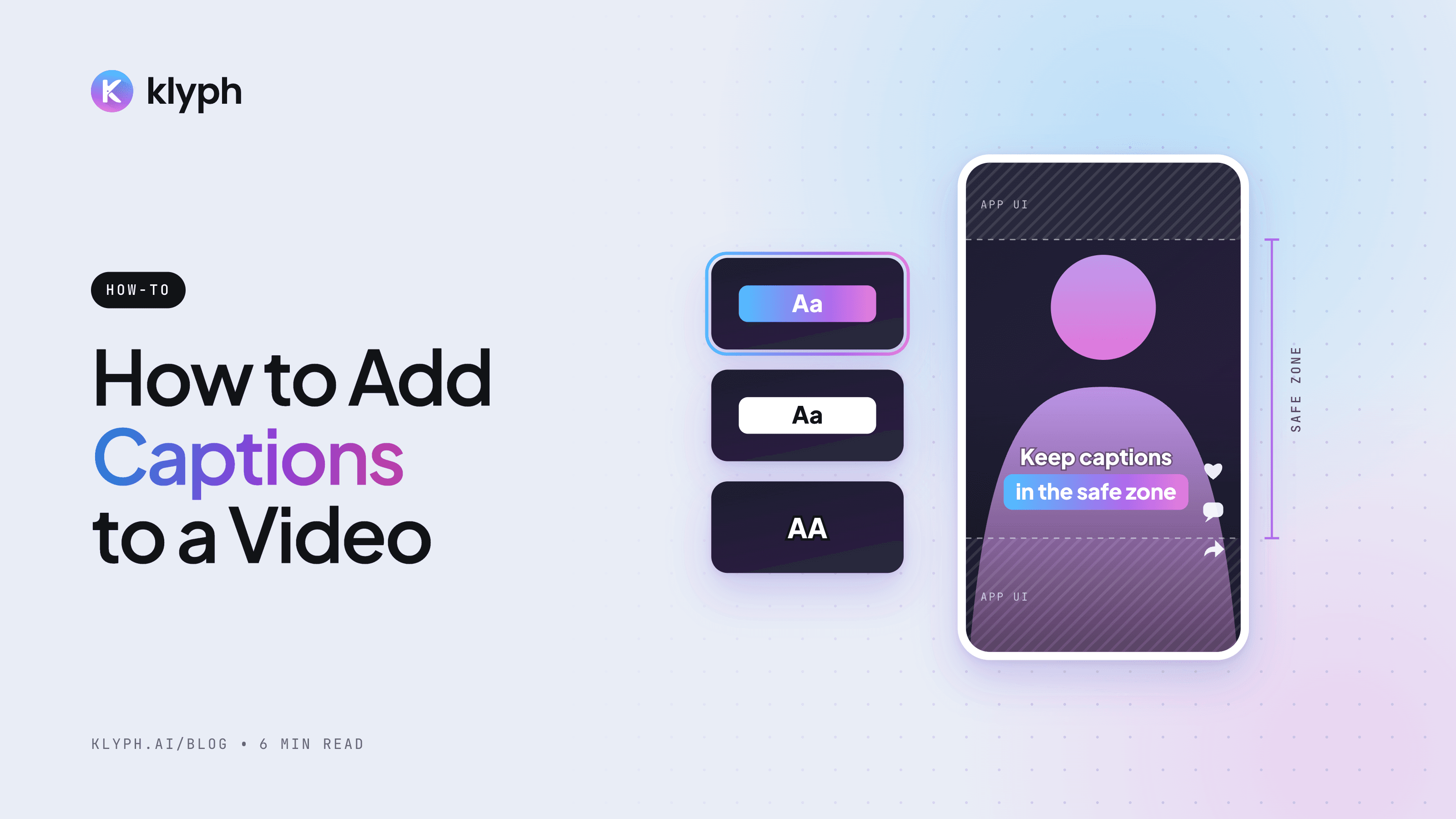
- Add captions. Generate them, then fix names, jargon, and numbers by hand (how to add captions to a video covers the options). Keep them large and inside the safe area, away from the bottom edge where platform buttons and captions sit.
- Export each clip separately. H.264 MP4 at 1080×1920 is a safe default for all three platforms.
- Write a caption and title per platform. A YouTube Shorts title, an Instagram caption, and a TikTok caption are read differently, so don't paste the same text everywhere.
If you only need to cut one section out of a longer file without re-editing, our online video trimmer handles start and end cuts. For tips on keeping quality intact while trimming, see how to trim a video online without losing quality.
How long should each short clip be?
Clip length should come from the content. Cut each clip to the length of the idea it carries and stop there. Some ideas land in 20 seconds, others need a minute and a half. TikTok, Reels, and Shorts all accept clips longer than a minute now, so you have room. What usually goes wrong is a slow start, not a long runtime.
We cover current platform limits and how to test lengths in best video length for TikTok, Reels, and Shorts.
Manual editing or an AI clipping tool: which should you use?
Both get you to the same result. The difference is where your time goes.
| Manual editing | AI clipping tool | |
|---|---|---|
| Finding moments | You read the transcript and pick | The tool suggests candidates, you choose |
| Reframing to 9:16 | Keyframed by hand | Automatic, adjustable |
| Captions | Generated, then timed and styled by hand | Generated and styled, you fix errors |
| Control | Full control over every cut | Less granular, faster to iterate |
| Best for | A few high-stakes clips, complex edits | Regular output from podcasts, talks, interviews |
Manual editing makes sense when you publish a few clips a month and want every cut exact. An AI tool makes sense when you publish from long recordings every week and the hunting and captioning eat your schedule.
Klyph is one option in the second group. You paste a link or upload a file, it suggests clips built around strong openings, reframes them to vertical, and adds captions you can edit word by word. You review the board, trim what needs trimming, and export. The getting started guide walks through a first run, and the use cases page shows what kinds of source videos it handles. Whatever tool you use, review every clip before it goes out. Automated picks still need a human check for context.
What mistakes should you avoid?
Most weak clips come from the same few problems:
- Starting too early. Viewers decide fast. Cut the warm-up and start on the line that matters.
- Leaving the speaker small in frame. A wide shot cropped to vertical often leaves a tiny head in the middle. Zoom in.
- Captions in the wrong place. Text near the bottom edge gets covered by the app's own interface. Keep it in the middle or upper half.
- Clipping only from the start of the video. Good moments are spread through a recording. The best one is often in the Q&A.
- Posting the same caption everywhere. Each platform shows text in a different place and length. Write for each one.
Start small. Pick one long video you already have, cut three clips using the steps above, and post them a few days apart. You'll learn more from those three than from planning twenty.
Frequently asked questions
How many short clips can you get from a one-hour video?
It depends on how dense the conversation is. A focused interview might give you ten usable clips, while a loose chat might give you three. Pick clips by quality, not by a quota. One strong clip does more for you than several that need context to make sense.
Do I need to reframe clips to 9:16?
For TikTok, Reels, and Shorts, yes. All three are built around full-screen vertical video on phones. Horizontal footage shown in a vertical feed gets letterboxed and looks small, so crop to 9:16 and keep the speaker's face in the upper part of the frame.
Can I turn a YouTube video into shorts?
Yes, if you own the video or have permission to reuse it. Download your own source file from YouTube Studio or your recording tool, then cut clips from that file. Working from the original upload gives better quality than a re-downloaded or screen-recorded copy.
Should I add captions to every clip?
Yes. Many people watch short video with the sound off, and captions also help viewers follow fast speech or accents. Generate them automatically, then check names, numbers, and technical terms by hand, since those are the words speech recognition gets wrong most often.
What's the fastest way to turn a long video into short clips?
Use an AI clipping tool to find candidate moments, reframe them, and caption them, then spend your time reviewing the picks. If you prefer manual editing, the biggest speedup is working from a transcript instead of scrubbing the timeline.