How to Add Captions to a Video (Free, Auto or Manual)
Burned-in captions, SRT files, or in-app captions: which to use, how to add each one for free, and how to style captions people can read on a phone.
To add captions to a video, you need two things: a transcript with timing, and a way to show it on screen. Every method, from typing an SRT file by hand to a one-click auto caption generator, is a different way to get those two pieces. The right one depends on where the video will be posted.
How do you add captions to a video?
To add captions to a video, first decide whether the captions should be burned into the picture or delivered as a separate file. Burned-in captions (open captions) are part of the video, so they show on every platform and keep your styling. A sidecar file such as SRT or VTT (closed captions) sits next to the video, and viewers can switch it off. Then create the timed text: use an auto caption generator to transcribe the speech, or type it yourself with timestamps. Read the transcript once from start to finish and fix names, numbers, and technical words, since speech recognition gets those wrong most often. Finally, export. For burned-in captions, render a new video with the text on it. For a sidecar file, export SRT or VTT and upload it with the video. Short vertical clips for TikTok, Reels, and Shorts usually use burned-in captions.
Open captions vs closed captions: which should you use?
The choice decides your whole workflow, so make it first.
| Type | What it is | Best for | Trade-off |
|---|---|---|---|
| Burned-in (open) | Text rendered into the video frames | TikTok, Reels, Shorts, ads, any feed where you want a fixed style | Can't be turned off or edited without re-rendering |
| SRT or VTT file (closed) | A text file of timed lines uploaded beside the video | YouTube long-form, courses, websites with a video player | Styling is up to the player, and some platforms don't accept files |
| In-app auto captions | Captions the platform generates from your audio | Quick posts where style doesn't matter | Limited styling and you depend on that app's accuracy |
A common setup is both: burned-in captions on the vertical clips, and an SRT file on the full YouTube upload.
How to add captions automatically, step by step
Auto captioning is the fastest route for anything longer than a minute.
- Open your video in an auto caption generator. Our free auto caption generator lets you preview caption styles on your own video in the browser before you sign up.
- Set the spoken language. Automatic detection works for most clips. Set it by hand if the speaker switches languages or has a strong accent.
- Pick a caption style. Choose a style that matches the platform. Bold, word-by-word styles suit short-form, and a plain two-line style suits tutorials.
- Proofread the transcript. Check names, product terms, numbers, and anything said quickly. A wrong word in a burned-in caption stays there forever.
- Export. Render the captioned video for short-form, or download an SRT or VTT file for platforms that accept one.
If the video is long and you need several short captioned clips from it, a clipping tool saves a step. Klyph finds the moments, crops them to 9:16, and captions each clip with word-level timing.
How to add captions manually
Manual captions make sense for short videos, scripted content, or languages your tools don't handle well. The standard format is SRT: numbered blocks, each with a time range and one or two lines of text.
1
00:00:00,000 --> 00:00:02,400
Most people trim their clips

2
00:00:02,400 --> 00:00:05,100
after they add captions. Do it before.
A few rules keep a hand-made file clean:
- Start each caption when the speaker starts the phrase, and end it when they finish or the next caption begins.
- Break lines at natural pauses, not in the middle of a name or a number.
- Keep timestamps in the exact
HH:MM:SS,mmmformat, with a comma before the milliseconds. - Save the file as UTF-8 so accented characters display correctly.
Most editors, including free ones, can import an SRT file and burn it into the video if you need open captions.
How do you make captions readable on a phone?
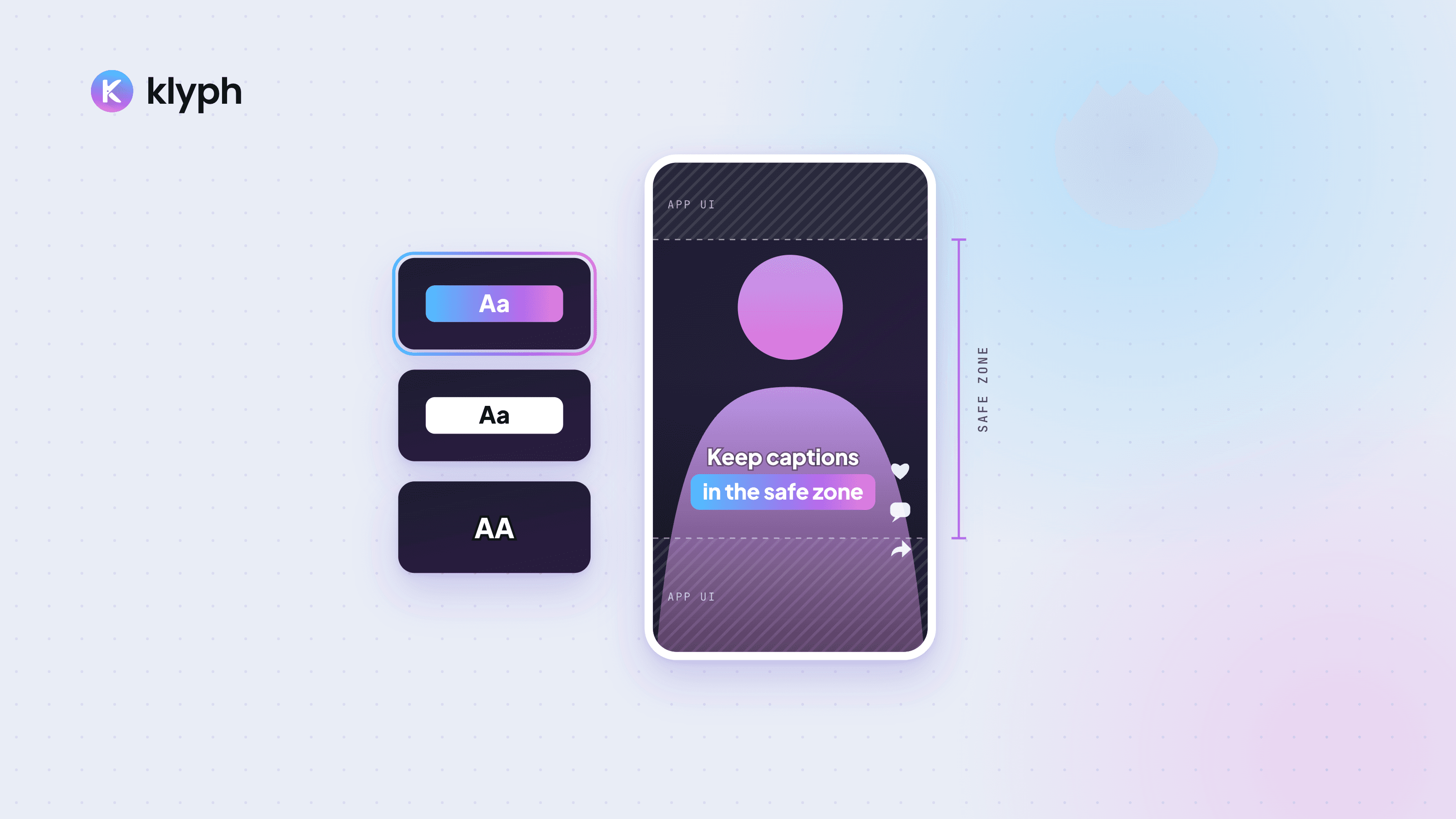
Readable captions are short, high-contrast, and placed where the app's interface won't cover them. On vertical video, the top and bottom of the frame hold the platform's buttons, username, and description, so keep captions in the middle band of the screen. Use one or two lines at most. Netflix's English timed text style guide caps a line at 42 characters, and short-form captions are often shorter still, at two to five words per line. Give the text an outline, a shadow, or a box behind it so it stays legible over bright and busy footage. Size it so it reads on a phone held at arm's length.
Word-by-word highlighting, where the current word changes colour as it's spoken, helps on fast speech because the viewer can keep their place. Use one highlight colour and keep the rest of the line plain.
Common caption mistakes to avoid
- Exporting without proofreading. Speech recognition is good, not perfect. Names and numbers need a human check.
- Captions under the app's interface. Preview the video inside the target app, or use a style that sits in the safe zone.
- Walls of text. Three-line captions on a vertical video cover the speaker and get skipped.
- Captioning, then trimming. If you cut the video after adding captions, the timing shifts. Trim first, then caption. Our free video trimmer runs in the browser for that step.
- Mismatched sidecar files. An SRT made for one edit won't line up with a re-cut version. Export a new file whenever the edit changes.
If you're turning a long recording into clips, captioning comes after choosing the moments. Our guide on how to turn a long video into short clips covers that part.
Frequently asked questions
How do I add captions to a video for free?
Use the free auto captions built into TikTok, Instagram, or YouTube, write an SRT file by hand, or use a free auto caption generator to transcribe the audio and add styled captions. Proofread the text before you publish, whichever method you choose.
What is the difference between open and closed captions?
Open captions are burned into the video and always visible. Closed captions are a separate track or file, such as SRT or VTT, that viewers can turn on or off. Short-form feeds mostly use open captions; YouTube and course platforms support closed captions.
Should I use burned-in captions or an SRT file?
Use burned-in captions for TikTok, Reels, Shorts, and ads, where you want the same look everywhere. Use an SRT or VTT file for YouTube long-form and video players that support captions, since viewers can turn them off and search engines can read the text.
How accurate are auto captions?
Auto captions are usually accurate on clear speech in a common language, and less accurate with background noise, overlapping speakers, accents, and specialist terms. Always read the full transcript once and correct names, numbers, and jargon before export.
Where should captions go on a vertical video?
Keep them in the middle band of the frame. The top and bottom of TikTok, Reels, and Shorts are covered by the app's buttons and text, so captions placed there get hidden on many phones.