
Webinar and livestream clips from the full recording
Klyph makes webinar and livestream clips from the recording you already have. A long session usually holds a few moments worth posting: a clear answer in the Q&A, a demo that lands, a sharp line from a panelist. Klyph finds them by splitting the transcript into topics and scoring each segment.
Last updated
How do you clip a webinar or livestream with Klyph?
Paste the recording link or upload the file, and Klyph segments it by topic. The docs list Zoom recordings, Loom, Vimeo, YouTube, and Google Drive as supported link sources. You review ranked segments, add speaker name cards, and export 1:1 for LinkedIn or 9:16 for Reels and Shorts.
- Step 01
Drop in the recording
Paste a Zoom, YouTube, or Vimeo link, or upload the MP4 your webinar tool saved.
- Step 02
Let Klyph find the topics
The semantic pass breaks the session into topic segments, so a Q&A answer about pricing becomes its own clip.
- Step 03
Brand it and export
Add lower-thirds and name cards from your templates, then export 1:1, 9:16, or 16:9.
What makes webinar footage hard to clip?
Webinars run long, start slow, and lean on slides. The best moment might sit forty minutes in, after the housekeeping and the agenda slide. Klyph scores every segment across the whole recording, so a strong answer near the end ranks as high as one near the start.
Topics mapped across the session
The semantic pass runs topic segmentation and narrative arc detection over the full transcript, so clips start and end on a complete thought.
Panels and co-hosts handled
With several speakers on screen, the crop follows whoever is talking, timed to voice activity.
Name cards and stat callouts
Lower-thirds, name cards, stat callouts, and quote pulls come from templates you control. Edit the copy, move them, or turn them off.
1:1 for LinkedIn and X
B2B webinar clips often end up on LinkedIn. Klyph exports 1:1 for LinkedIn and X feeds and 9:16 for vertical apps.
Who is this for?
Teams that put an hour into a live session and want more than one replay link out of it. Marketing teams running a monthly webinar fit here, and so do streamers with long VODs and event teams recording panels. Klyph gives each of them a ranked list of segments to clip.
- B2B marketing teams who run a regular webinar and need posts from it
- Streamers clipping highlights from a long VOD
- Event teams turning conference sessions and panels into recap clips
What does one webinar look like in Klyph?
A product webinar with live Q&A is a familiar shape for this job. Follow one recording below, from the Zoom link to a review link for the presenters. The session is an example. Q&A answers often make clean standalone clips, because each one opens with a question someone already asked.
Source: a 55-minute Zoom recording with two presenters, a slide demo, and 15 minutes of Q&A
- Paste the Zoom recording link into Klyph.
- The semantic pass splits the session into topics. The Q&A section yields several standalone answers.
- Keep clips with high coherence scores, so each one makes sense without the slides that came before.
- Give each presenter a name card in your brand kit colors.
- Export 1:1 for the company LinkedIn page and 9:16 for Reels, then send the review link to both presenters.
Frequently asked questions
Can Klyph clip Zoom recordings?
Yes. Paste a Zoom recording link, or download the recording and upload the MP4.
Can I clip a livestream?
If the stream is saved as a YouTube video, paste its link like any other YouTube URL. For other platforms, download the VOD and upload it as MP4, MOV, MKV, or WebM.
What happens to slides in a 9:16 crop?
The vertical crop follows faces and objects, so slide-heavy sections can lose detail at 9:16. For those moments, export 1:1 or keep 16:9, which passes through with only tightening applied.
Can presenters review clips before they go out?
Yes. Share a review link and presenters can watch and comment without downloading a file.
Can I add our logo and brand colors?
Yes. Upload a logo, primary color, accent color, and display font to the brand kit, and every job uses it by default.
Related use cases
- Courses & coaching
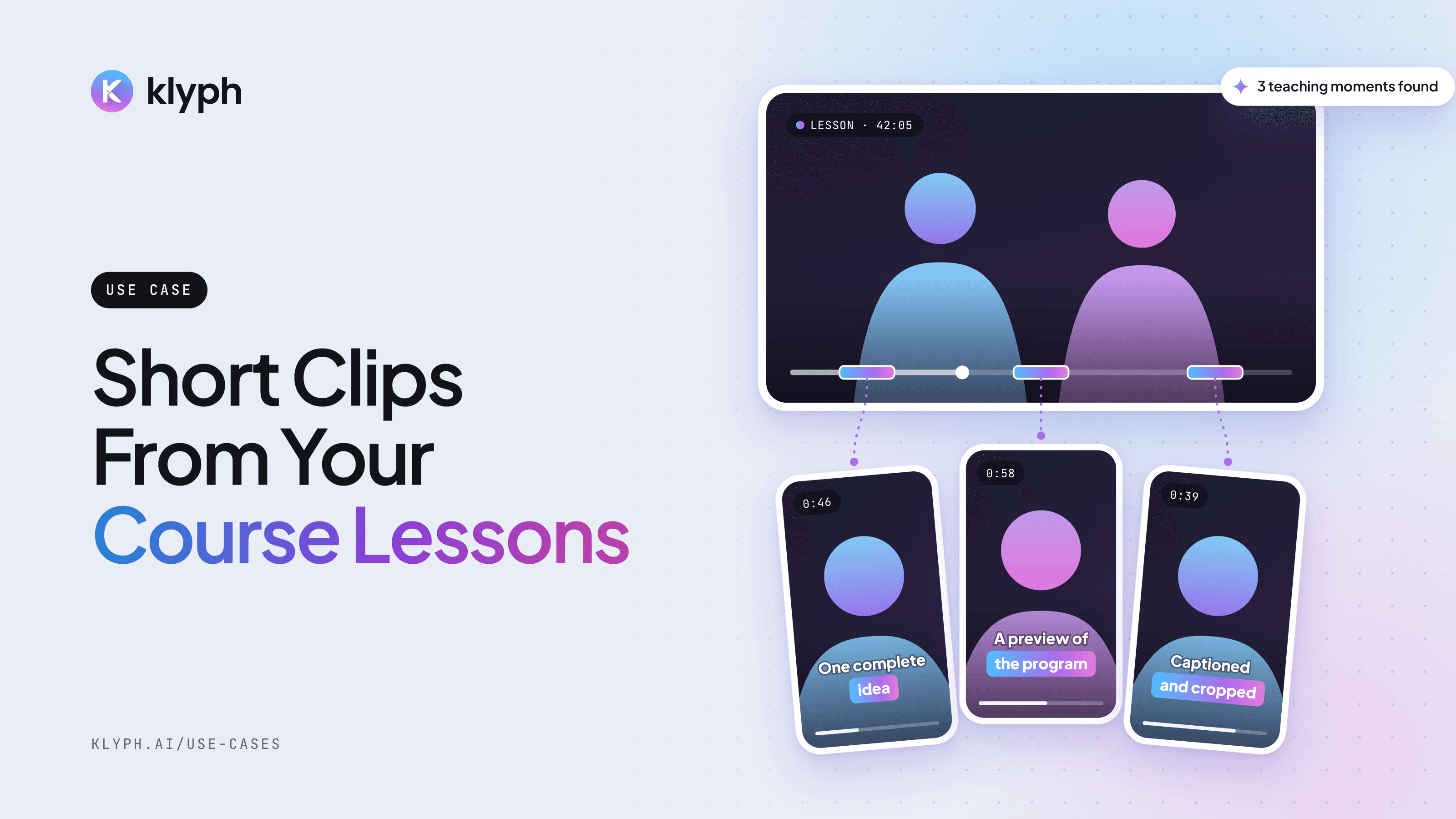
Course and coaching clips
Find the parts of a lesson that teach one complete idea and post them as previews for the full program.
See how it works - Agencies
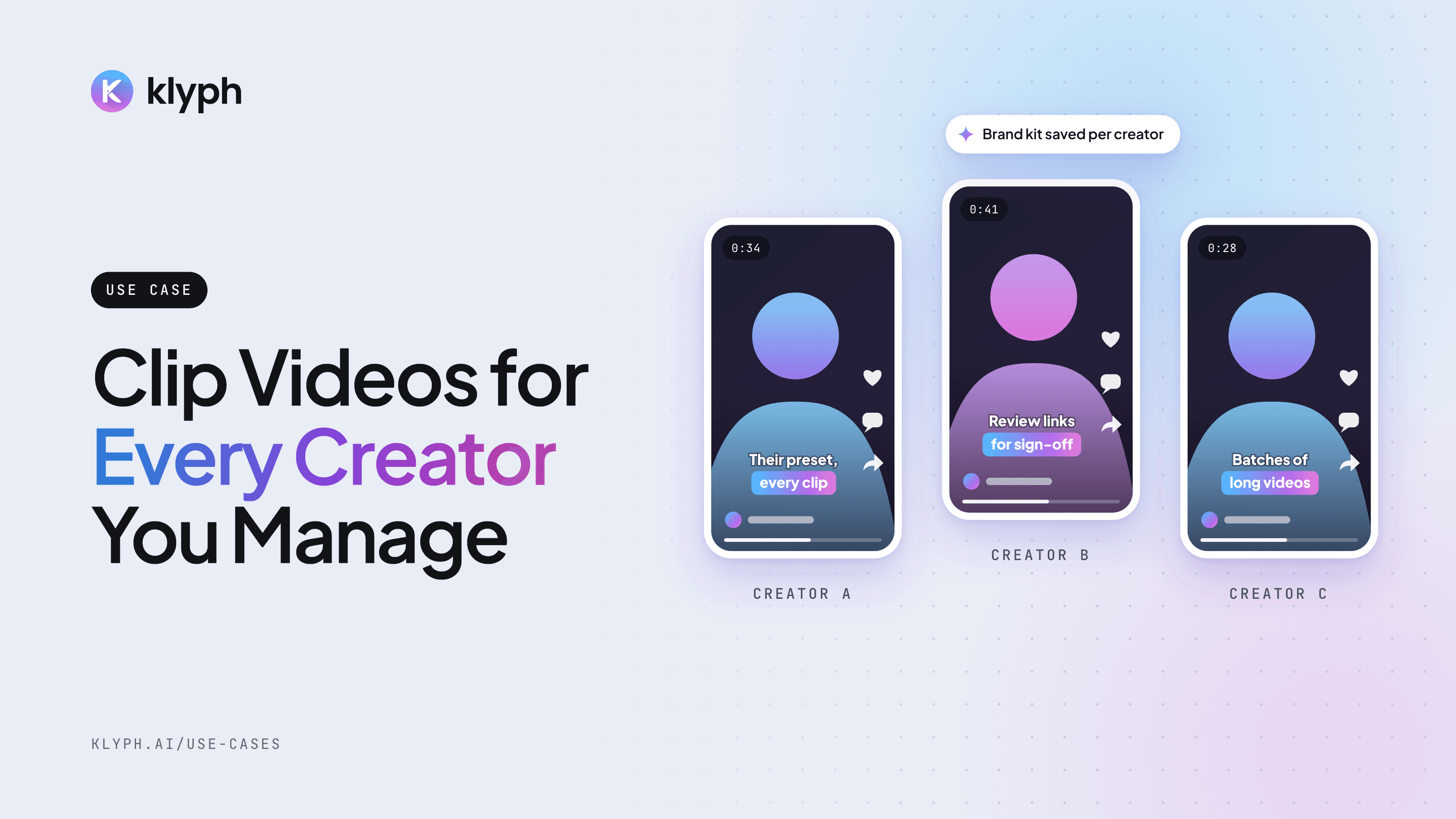
Agencies managing multiple creators
Keep each creator's brand kit and preset saved, run their long videos in batches, and get sign-off through review links.
See how it works