
Free Online Video Trimmer
Trim video online without uploading it anywhere. Drop in a file, drag the handles to the part you want to keep, and play the selection back to check it. Exporting the trimmed MP4 takes a free Klyph account.
- The file stays on your device while you trim
- Set start and end to a tenth of a second
- Drag with a mouse, a finger, or the arrow keys
Drop a video here
or pick one from your device
MP4, MOV, or WebM. The video plays from your device and is never uploaded.
How it works
How to trim a video in 3 steps
To trim a video online, open it in the trimmer above. Drag the left handle to where the clip should begin and the right handle to where it should end, then press Play selection to check the cut. When it looks right, press Trim & download and sign in to export.
- 01
Add your video
Drop a file onto the trimmer or tap Choose video. It opens in your browser straight from your device, so nothing goes to a server while you work.
- 02
Set the start and end
Drag the two handles on the timeline, or type exact times like 1:05.5 into the Start and End boxes. With a handle focused, the arrow keys nudge it by 0.1 seconds. Hold Shift to move a full second.
- 03
Preview and export
Press Play selection to watch only the part you kept. When it looks right, press Trim & download, create a free Klyph account, and finish the export as an MP4 in the Klyph editor.
Why trim
Why trim a video before you post it?
Most recordings start a few seconds early and end a few seconds late. There's the countdown, the reach for the stop button, the “okay, are we rolling?” Trimming removes that so the first thing a viewer sees is the first thing worth watching. It also gets a clip under the length limit of the platform you're posting to.
Nothing is uploaded to preview
The trimmer plays the file from your device with your browser's own video player. You can scrub through a private recording and it never leaves your computer.
Exact times, down to 0.1 seconds
Type a start and end time, or drag the handles and watch the times update. The selected length is shown below the timeline as you go.
Works from the keyboard
Tab to a handle and use the arrow keys, Page Up and Page Down, or Home and End. Every control has a label for screen readers.
Works on phones too
Drag the handles with a finger on iOS and Android. The layout stacks so the timeline and buttons stay large enough to hit.
Terms
What's the difference between trim, cut, and crop?
Trimming shortens a video from its ends. Cutting removes or splits out a section from the middle. Cropping changes the frame instead of the length. People say “cut” for all three, but most video editors keep them as separate tools, and this one only trims.
| What it removes | What you get | Use it when | |
|---|---|---|---|
| Trim | Removes footage from the start, the end, or both | One shorter, continuous clip | The recording starts too early or runs too long |
| Cut | Removes or splits out a section in the middle | Two or more pieces, or one video with a gap closed | There's a mistake or a tangent halfway through |
| Crop | Removes the edges of the frame, not time | Same length, different shape | You need a 16:9 video to fit a 9:16 vertical feed |
For long videos
How do you turn a long video into short clips?
A trimmer works when you already know which part you want. With a 40-minute podcast or a recorded talk, finding the good moments is the slow part. Klyph reads the whole video, picks out moments with a strong hook, cuts them into vertical clips, and captions them. You review the clips, adjust any of them, and export.
- Hook detection
Finds moments with a strong opening and ranks the candidate clips by predicted performance.
- Word-level captions
Captions timed to each word, with presets like Creator Default and Podcast.
- Filler and pause removal
Strips the ums and long silences by default. You can turn it off.
- Upload or paste a link
MP4, MOV, MKV, or WebM up to 5 GB, or a YouTube, Vimeo, Loom, Zoom, or Drive link.
New to Klyph? The getting started guide walks through your first project. Pro starts at $19 per editor per month, billed yearly.
FAQ
Video trimmer questions
Is this video trimmer free?
Yes. Opening a video, setting the trim, and previewing it costs nothing and needs no account. Exporting the trimmed file takes a free Klyph account. Exports on the free trial carry a Klyph watermark, and the Pro plan removes it.
Does my video get uploaded?
Not while you trim. The tool plays the file from your device using your browser's built-in video player, and nothing is sent to Klyph. The file only gets uploaded if you sign up and choose to export it in the Klyph editor.
What video formats can I trim?
Any format your browser can play. MP4 (H.264) and WebM work in every major browser. MOV and MKV depend on the browser and the codec inside the file. The Klyph editor accepts MP4, MOV, MKV, and WebM uploads up to 5 GB.
Can I trim a YouTube video?
Choose Paste a link and drop in a YouTube, Vimeo, Loom, Zoom recording, or Google Drive URL. Links open in the Klyph editor, so you'll create a free account first. Only trim videos you own or have permission to use.
How precise is the trim?
Start and end times move in steps of a tenth of a second. Arrow keys move a handle 0.1 seconds, Shift plus an arrow moves it 1 second, and Page Up or Page Down moves it 5 seconds. You can also type a time such as 2:14.3.
Does it work on my phone?
Yes. The handles respond to touch on iOS and Android. Some formats, MKV in particular, may not play in mobile browsers, and very large files can be slow to open on older phones. MP4 is the safest choice.
Last updated
More free tools
What else can you do for free?
Klyph has 3 free video tools: video trimmer, auto caption generator and YouTube to shorts converter. You can set up each job without an account, and you finish it in Klyph after a free sign-up. Your settings carry over, so you don't pick them twice.
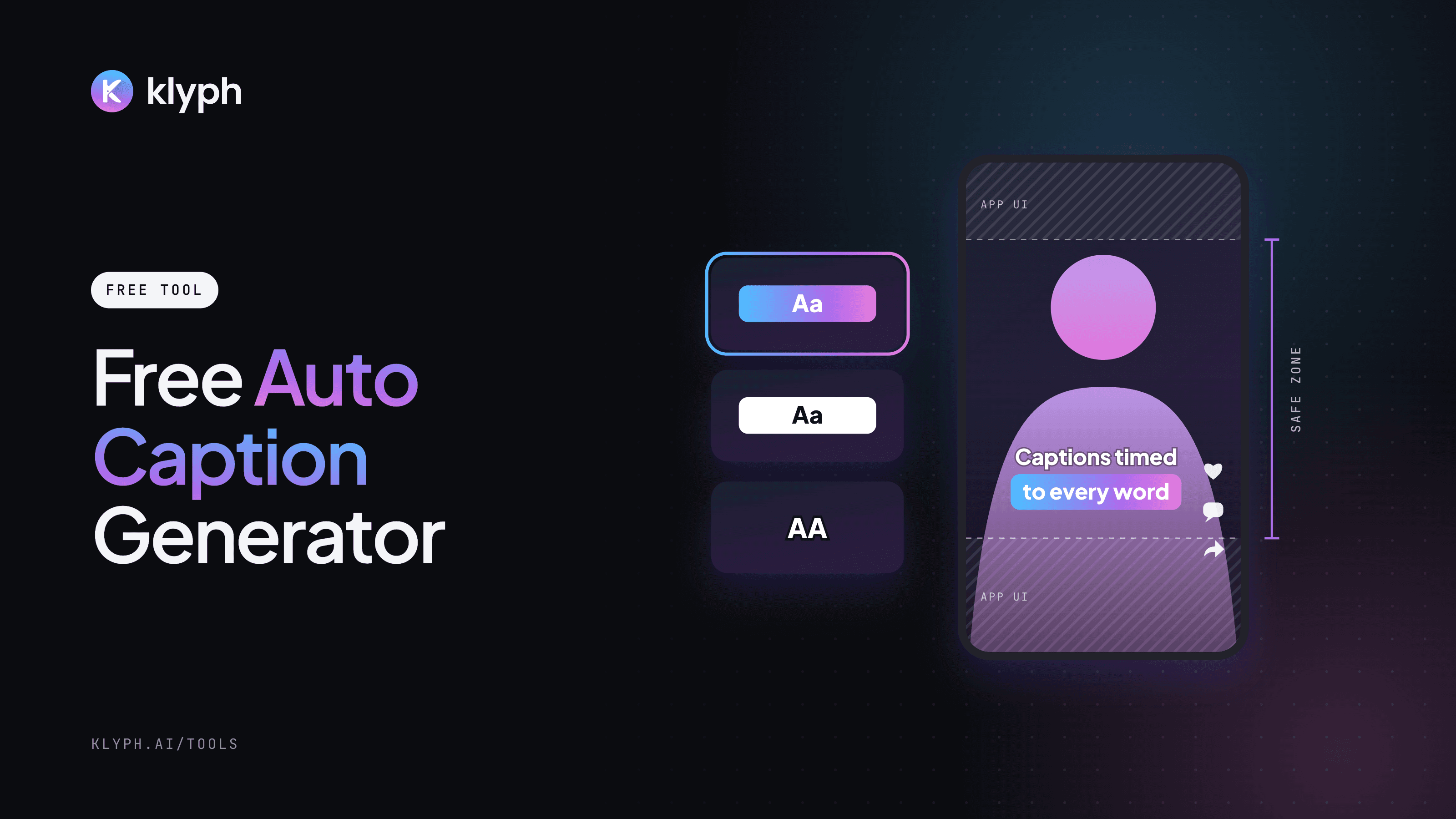
Auto Caption Generator
Preview six caption styles on your own video, pick the spoken language, then let Klyph transcribe it and add captions timed to each word.
Open tool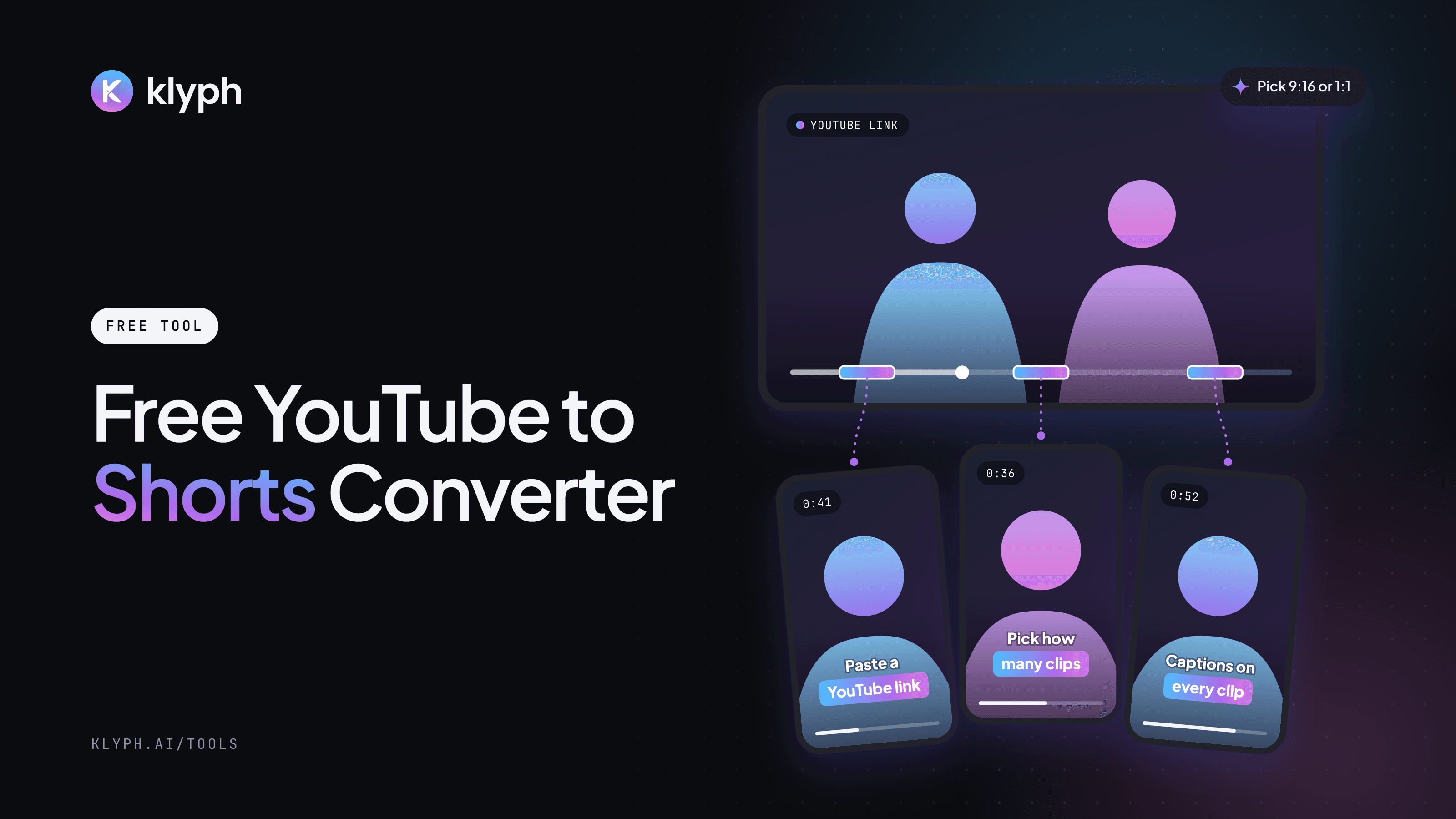
YouTube to Shorts Converter
Paste a YouTube link, choose up to 10 clips and 9:16 or 1:1. Klyph imports the video and cuts it into captioned Shorts.
Open tool
Related reading
- How to trim a video without losing quality
Why trims lose quality, how lossless cuts work, and the export settings to use.
- Clip generation docs
How Klyph cuts, reframes, and tightens clips from a long video.
Trim one video now, or clip a long one
The trimmer is free to use without an account. Sign up when you want to export, or when you have a long recording for Klyph to turn into clips.
More free tools are on the tools page. Guides live on the blog.