
Free Auto Caption Generator
Add captions to a video for free. Drop in your clip, pick a caption style and the spoken language, and see the look on your own footage. After a free sign-up, Klyph transcribes the speech and burns in captions timed to each word.
- Preview six caption styles on your own video
- The file stays on your device while you choose
- Transcription in 42 languages, with word-level timing
Drop a video on the preview, or pick one. It plays from your device and is not uploaded.
Free account required. Your style and language carry over.
How it works
How do you add captions to a video for free?
Open the video in the caption generator above, choose a style and the spoken language, and press Generate captions. After a free sign-up, drop the same video into Klyph. It transcribes the speech, times each caption to the word, and burns the captions into the video for you to review.
- 01
Add your video
Drop a file onto the preview or tap Choose video. It plays from your device and nothing is uploaded. You can also paste a YouTube, Vimeo, Loom, Zoom, or Google Drive link.
- 02
Pick a style and language
Click through the six styles and watch the sample caption change on your video. Then choose the spoken language, or leave it on Detect automatically.
- 03
Generate in Klyph
Press Generate captions and create a free account. Drop the same video into Klyph, where your style and language are already selected. Press start, then check the captions before you export.
What you get
What does an auto caption generator do?
An auto caption generator turns the speech in a video into on-screen text, so you don't type it yourself. Klyph transcribes the audio, splits it into short lines, and times every word to the moment it's spoken. You choose how the captions look, and Klyph renders them into the video.
Nothing uploads while you choose
The preview plays your file with your browser's own video player. The video only uploads when you add it to Klyph after signing up.
Word-level timing
Klyph times captions to each word, not to the whole sentence. Karaoke Highlight uses that timing to light up the word being spoken.
Caption styles you can edit
The preview shows six of Klyph's caption presets. In the editor you can change the font, weight, colors, outline, shadow, and position of any of them.
42 transcription languages
Pick the spoken language from the list or leave it on Detect automatically. Klyph can also export SRT or VTT subtitle files in up to three languages.
Caption types
Which kind of captions should you use?
Auto captions are the quickest way to caption a video. Burned-in captions suit short-form feeds, because they show on every player with the sound off. Type captions by hand only for very short clips or exact wording. Use an SRT file where viewers expect to turn captions on and off, like YouTube.
| What it is | Trade-off | Use it for | |
|---|---|---|---|
| Auto captions | Speech recognition writes the text and times it to the audio | Fast, but names and jargon need a quick check | Talking heads, podcasts, interviews, tutorials |
| Manual captions | You type every line and set its timing by hand | Exact wording, but slow on anything over a minute | Very short clips, or scripted brand and legal copy |
| Burned-in captions | The text is drawn into the video frames | Shows on every player, but viewers can't turn it off | TikTok, Reels, Shorts, and feeds that autoplay muted |
| SRT or VTT file | A separate text file of timed lines that the player displays | Viewers can switch it off, but some apps ignore it | YouTube long-form, course platforms, translations |
Klyph makes auto captions and burns them in, and it can export SRT or VTT files of the same captions.
In Klyph
What happens after you press Generate captions?
You create a free Klyph account and drop the same video in once more. Browsers don't let one website hand a file to another, so this step can't be skipped. Your caption style and language are already selected. Nothing runs until you press start, and then you review the captions in the editor.
- Credits
Captions-only processing uses credits. New workspaces start with free trial credits, so you can caption a video before you pay.
- Review before export
Fix a misheard word or a name in the editor, then export the captioned MP4.
- Emphasis on the stressed word
Klyph scores each word on pitch, energy, and duration, and colors the strongest word in each phrase.
- Clips from long videos
For a long recording, Klyph can also find the best moments and cut them into captioned vertical clips.
FAQ
Auto caption generator questions
Is this auto caption generator free?
Picking a style and previewing it costs nothing and needs no account. The captions themselves are made in Klyph after a free sign-up. Captions-only processing uses credits, and new workspaces start with free trial credits. Exports on the free trial carry a Klyph watermark, which the Pro plan removes.
Does my video get uploaded?
Not while you use this page. The preview plays the file from your device. The video uploads only when you drop it into Klyph after signing up. A browser won't pass a file from one website to another, so you add it once more in Klyph. Pasted links carry over on their own.
How precise is the caption timing?
Klyph times captions to individual words, using word-level timestamps from the transcript. That timing is what lets a karaoke style highlight each word as it's spoken. Speech recognition can still miss names and technical terms, so read the captions through before you export.
Which languages can it caption?
Klyph transcribes 42 languages. The list on this page has the common ones, and Detect automatically leaves the choice to Klyph. You can also export SRT or VTT subtitle files in up to three languages next to the burned-in captions.
Does the preview match the final captions exactly?
It's close, but not pixel for pixel. The preview is drawn with web styles over your video so you can compare looks quickly. Klyph renders the final captions with its own presets, and you can adjust font, color, outline, and position in the editor.
Can I get an SRT file instead of burned-in captions?
Yes. Klyph exports SRT or VTT files alongside the burned-in caption. Upload the SRT to YouTube or a course platform, and post the burned-in version to TikTok, Reels, and Shorts.
Last updated
More free tools
What else can you do for free?
Klyph has 3 free video tools: video trimmer, auto caption generator and YouTube to shorts converter. You can set up each job without an account, and you finish it in Klyph after a free sign-up. Your settings carry over, so you don't pick them twice.
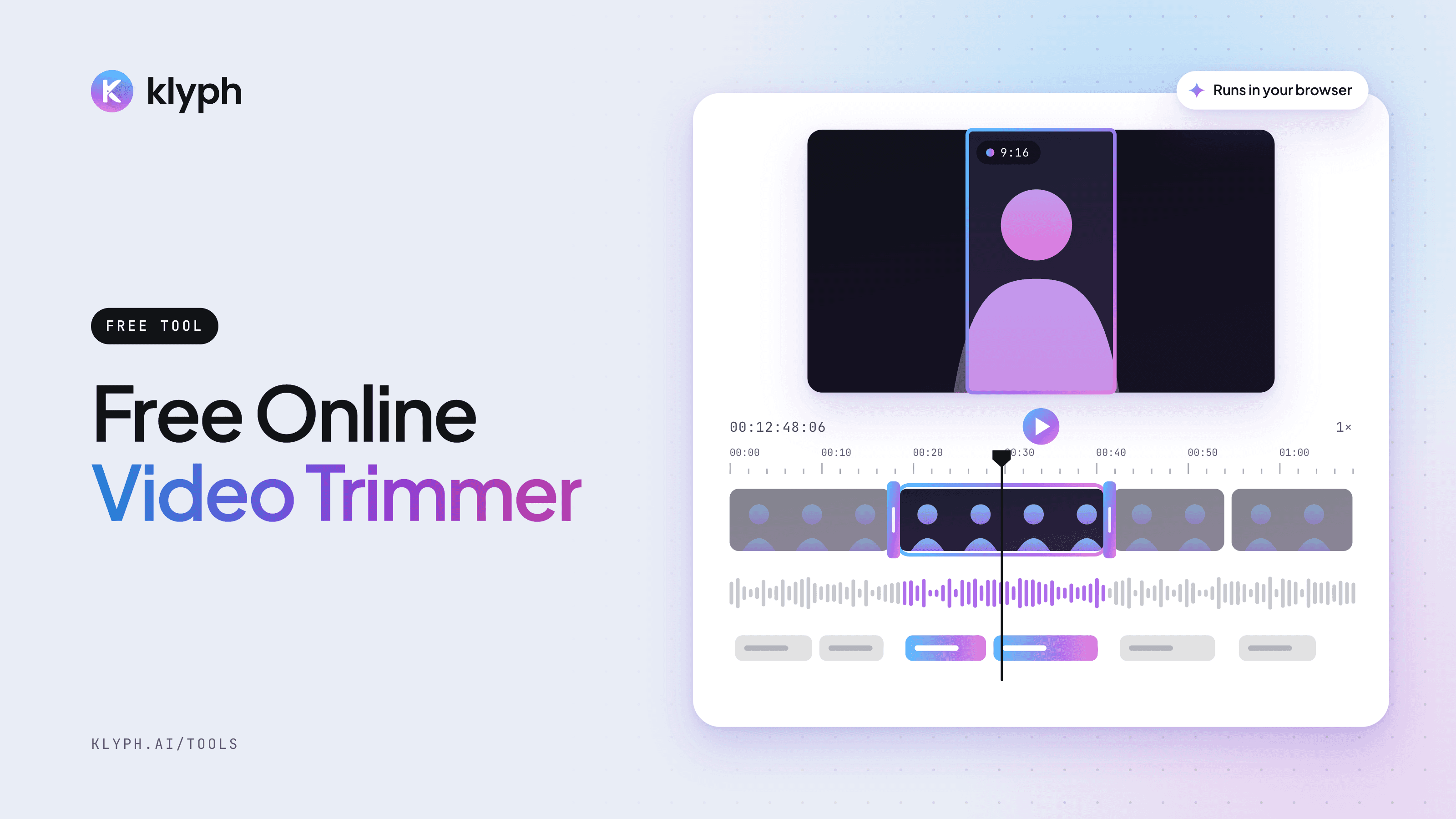
Video Trimmer
Drop in a video, drag the start and end handles, and preview the exact section you want to keep. The file stays on your device.
Open tool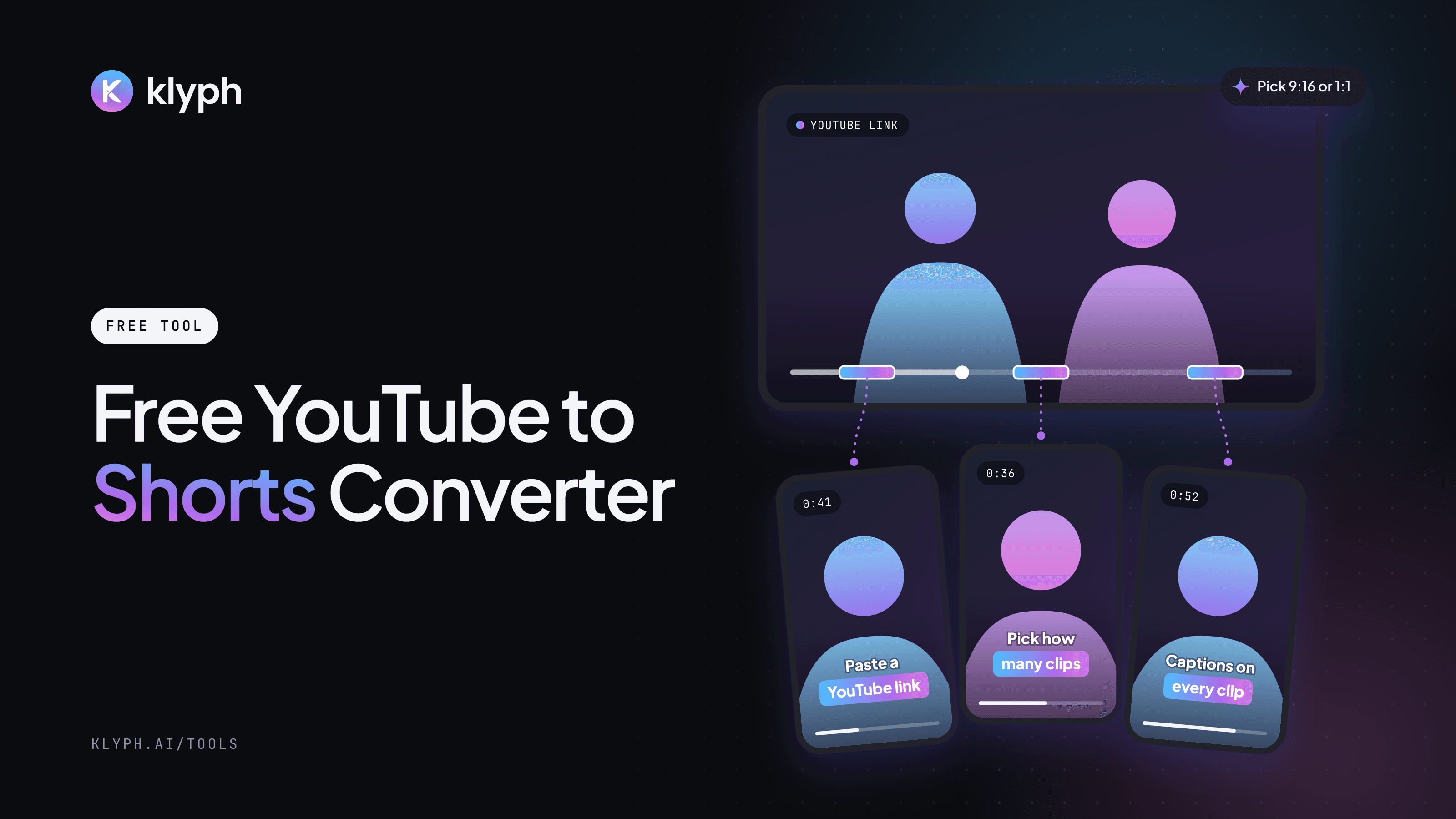
YouTube to Shorts Converter
Paste a YouTube link, choose up to 10 clips and 9:16 or 1:1. Klyph imports the video and cuts it into captioned Shorts.
Open tool
Related reading
- How to add captions to a video
Burned-in vs SRT vs in-app captions, plus readability rules for phones.
- UGC and marketing videos
Captions, hooks, and cutaways for creator takes and testimonials.
- Podcast clips
Captioned vertical clips from a full episode, cropped to whoever is talking.
- Auto captions docs
The style library, what each style setting does, and SRT or VTT export.
Pick a style now, caption the video in Klyph
The preview is free and needs no account. Sign up when you're ready for Klyph to transcribe the video and add the captions.